

6.20 Global Payments Integration
SambaPOS V5 Pro Global Payments Integration Guide
This guide provides step-by-step instructions on how to integrate Global Payments into SambaPOS V5 Pro.
1. File Preparation
Navigate to
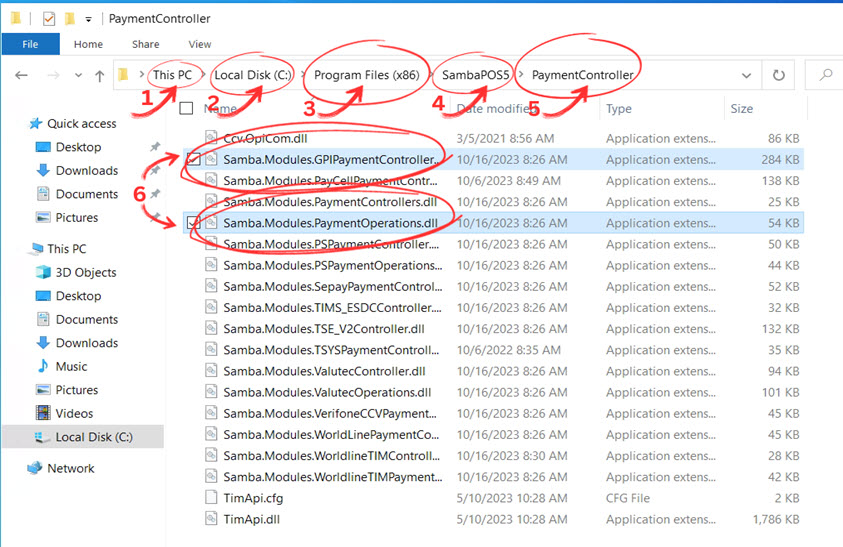
This PC > Local Disk (C:) > Program Files (x86) > SambaPOS5 > Payment Controller.Copy the following files:
Samba.Modules.GPIPaymentController.dll
Samba.Modules.PaymentOperations.dll
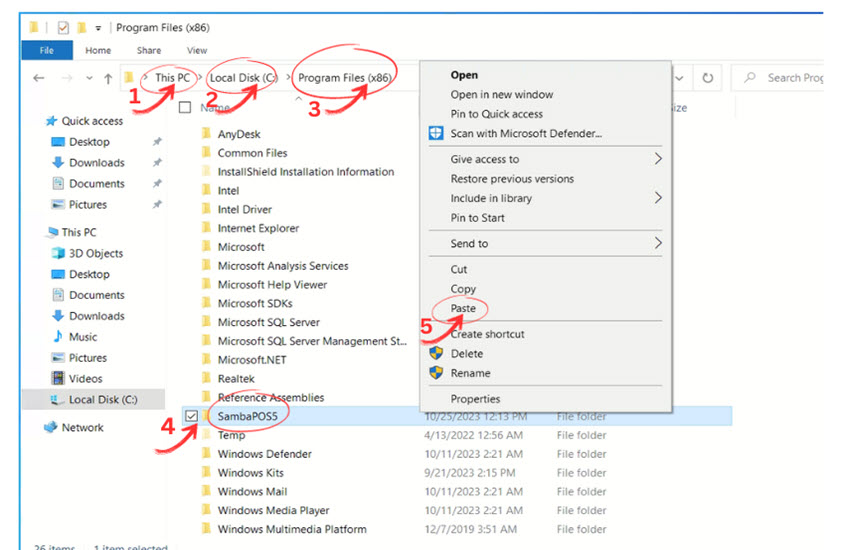
Paste them into
This PC > Local Disk (C:) > Program Files (x86) > SambaPOS5.
2. Setting Up the Custom Navigation Screen
Go to
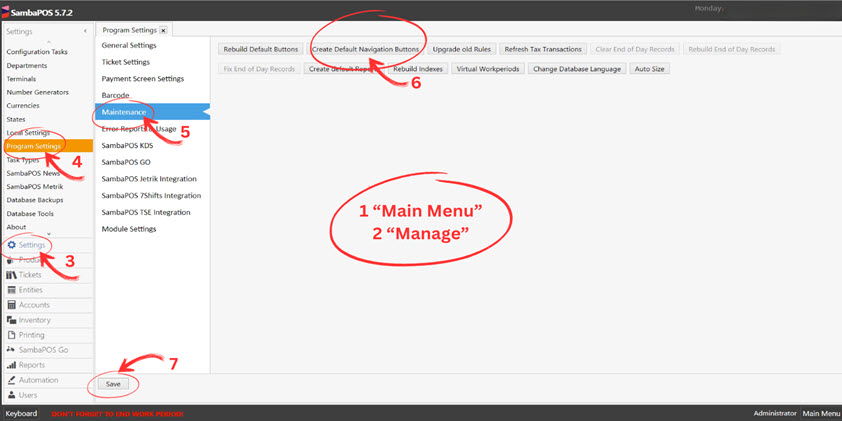
Main Menu > Manage > Settings > Program Settings > Maintenance.Click
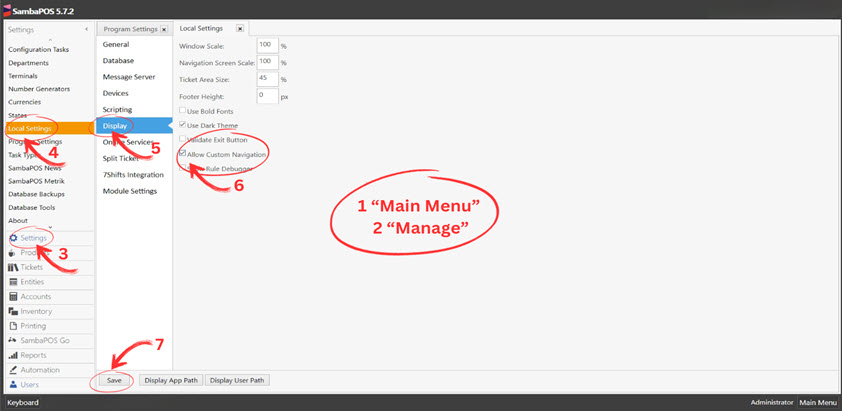
Create Default Navigation Buttonsand save your changes.Enable custom navigation in
Main Menu > Manage > Settings > Local Settings > Display.
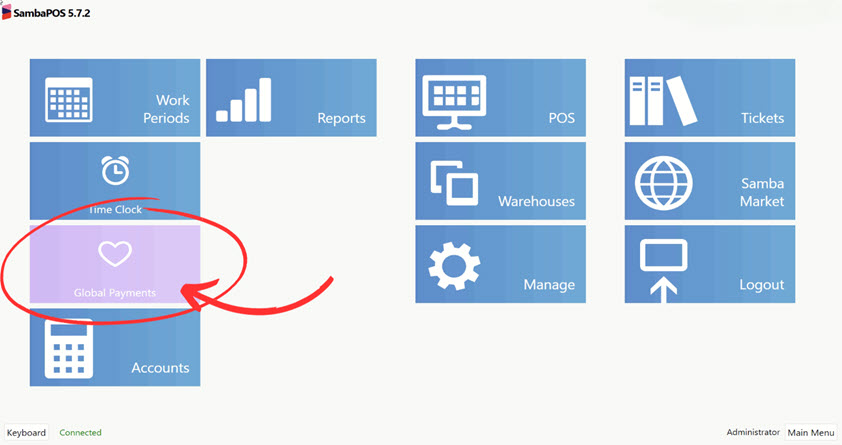
3. Creating an Automation Command
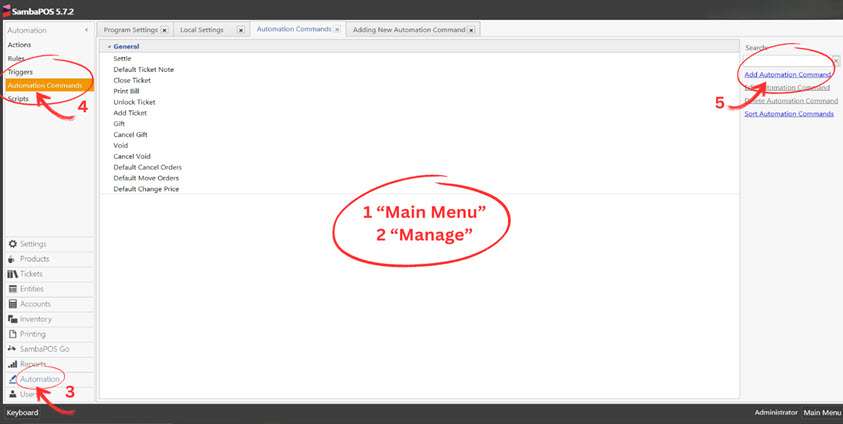
Navigate to
Main Menu > Manage > Automation > Automation Commands.Click on
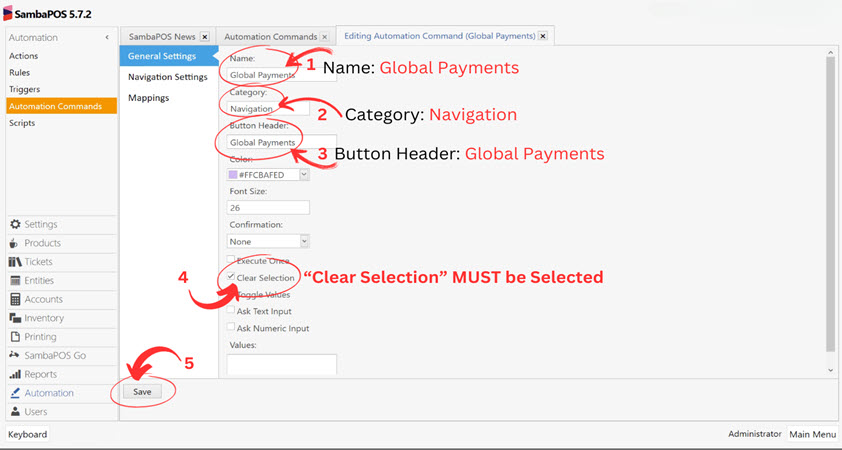
Add Automation Commandand fill in:Name: Global Payments
Category: Navigation
Button Header: Global Payments
Color: [Choose desired color]
Clear Selection: Enabled
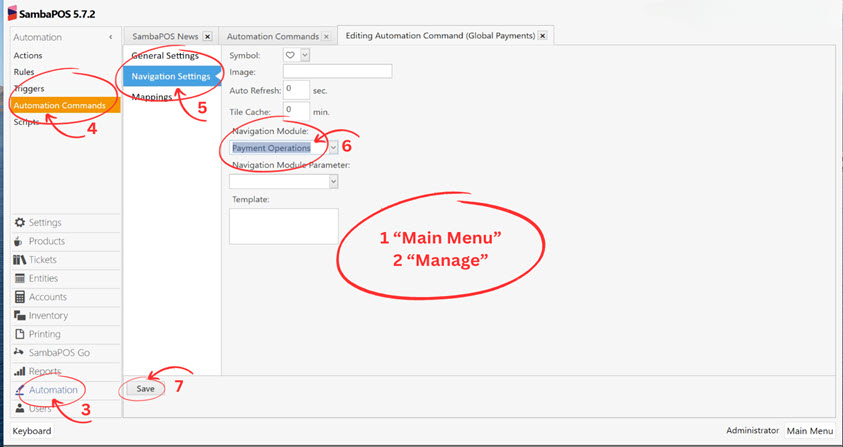
Symbol: [Choose a symbol]
Navigation Module: Payment Operations
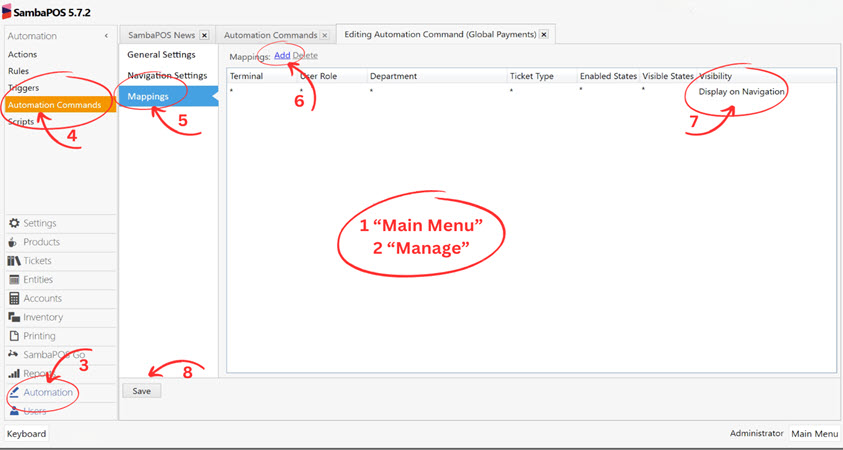
Add a new row in Mappings with
Visibility: Display on Navigation.Save your changes.
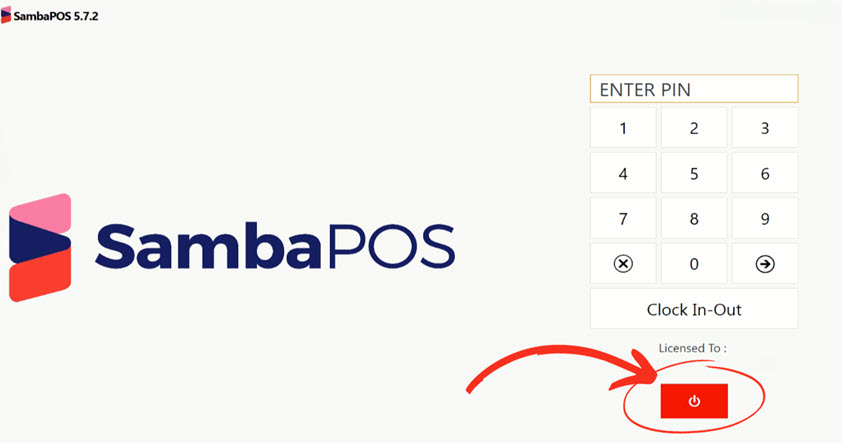
4. Restart SambaPOS V5 Pro
After completing the setup, restart SambaPOS V5 Pro to apply changes.
5. Setting Up Tip Account
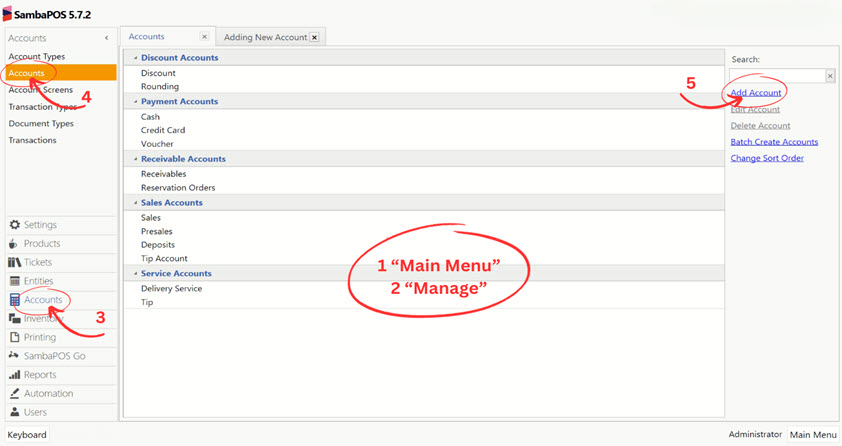
In
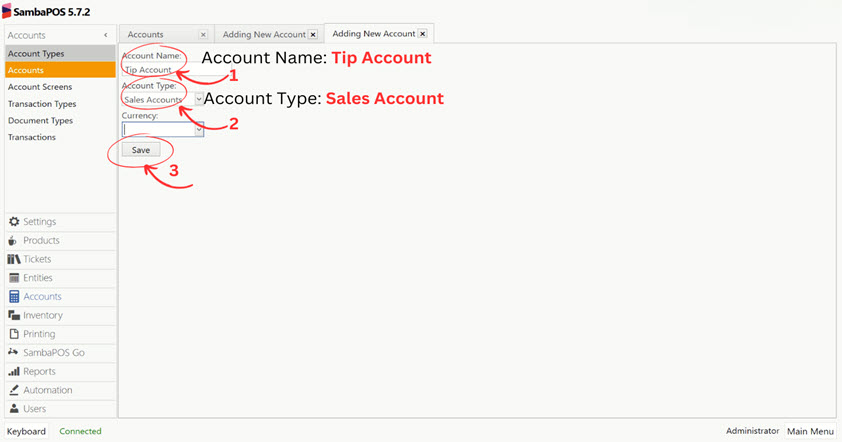
Main Menu > Manage > Accounts > Accounts, add an account:Account Name: Tip Account
Account Type: Sales Account
Save your changes.
6. Configuring Tip Transaction Type
Go to
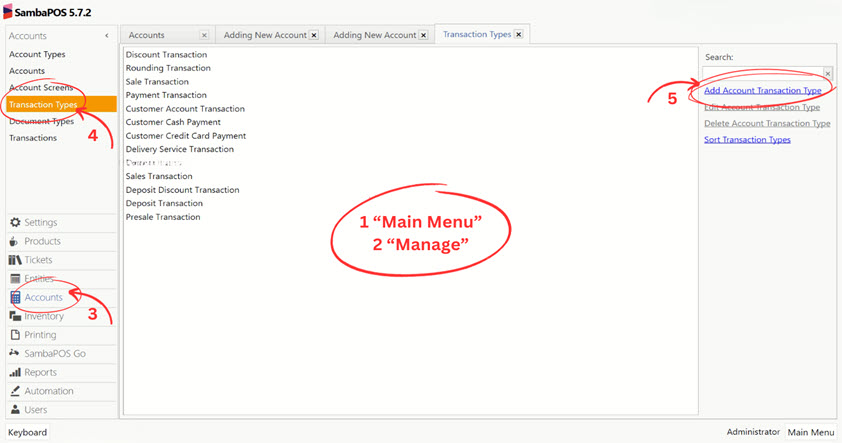
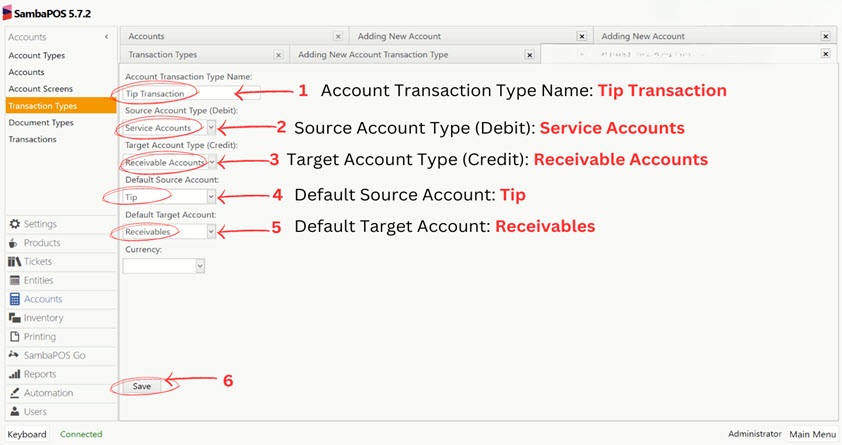
Main Menu > Manage > Accounts > Account Transaction Types.Add a transaction type with:
Name: Tip Transaction
Source Account Type: Service Accounts
Target Account Type: Receivable Accounts
Default Source Account: Tip
Default Target Account: Receivables
Save your changes.
7. Adding Calculation Selector
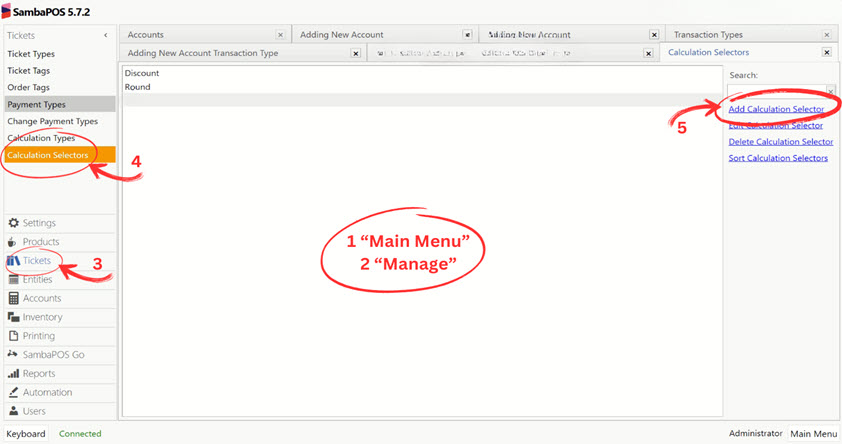
Under
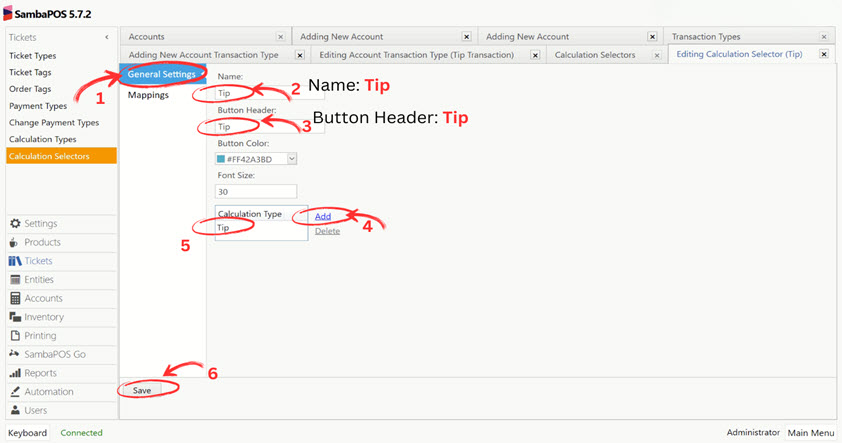
Main Menu > Manage > Tickets > Calculation Selectors, add a selector:Name: Tip
Button Header: Tip
Button Color: [Choose desired color]
Calculation Type: Add and select Tip
Save your changes.
8. Configuring GPI Credit Card Controller Settings
This step involves configuring the GPI Credit Card Controller settings in SambaPOS V5 Pro. Follow these instructions:
Navigate to
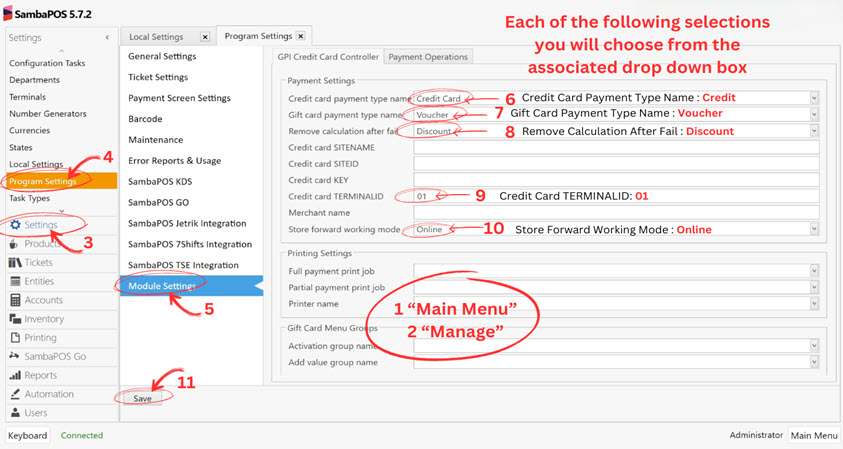
Main Menu > Manage > Settings > Program Settings > Module Settings.Choose the
GPI Credit Card Controllersection.Here, you need to enter the credentials provided by Global Payments Integrated. These include:
Credit Card SITENAME: Enter the sitename provided by Global Payments.
Credit Card SITEID: Input the site ID given by Global Payments.
Credit Card KEY: Enter the key provided by Global Payments.
Additionally, configure the following settings:
Credit Card Payment Type Name: Choose ‘Credit Card’.
Gift Card Payment Type Name: Select ‘Voucher’.
Remove Calculation After Fail: Set this to ‘Discount’.
Credit Card TERMINALID: Typically set this to ’01’, but confirm if different for your setup.
Store Forward Working Mode: Set this to ‘Online’.
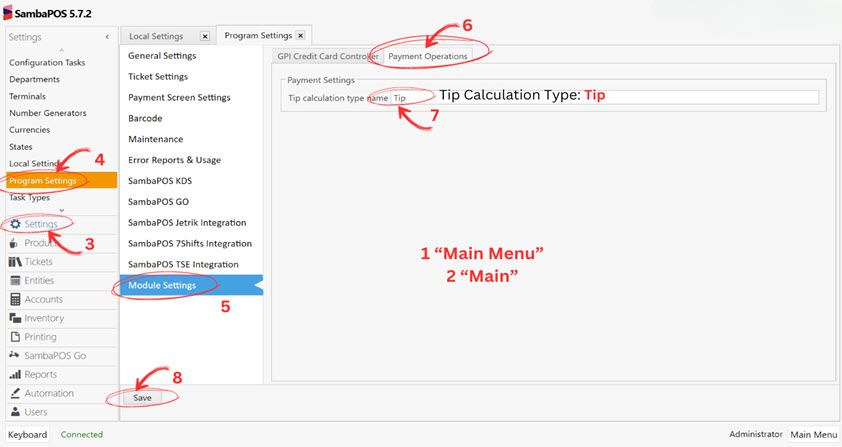
In the
Payment Operationssection, set the Tip Calculation Type Name to ‘Tip’.Ensure to save all your changes after completing the configuration.
These settings are crucial for the proper integration of Global Payments with your SambaPOS system. Make sure the credentials are entered correctly to ensure seamless payment processing.
9. Finalizing Module Settings with Global Payments Credentials
In this final step, you will configure the Module Settings in SambaPOS V5 Pro, including the important step of entering your Global Payments credentials:
Access the settings by navigating to
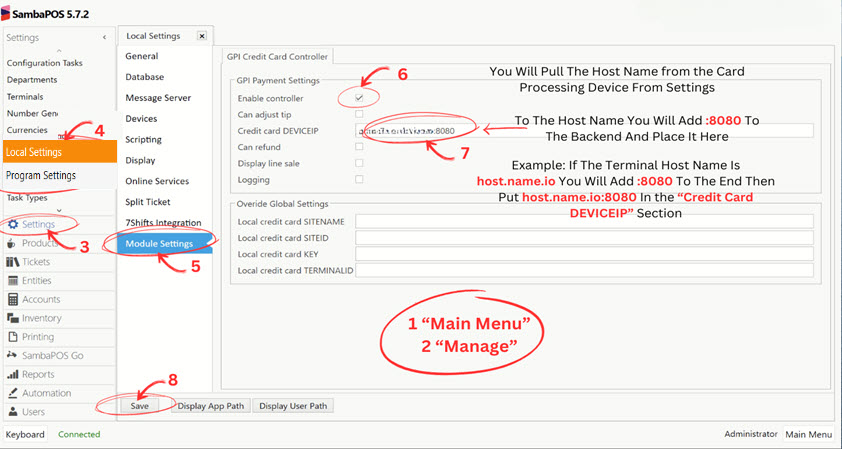
Main Menu > Manage > Settings > Local Settings > Module Settings.In the Override Global Settings section, input the credentials provided by Global Payments Integrated:
Credit Card SITENAME: Enter the sitename as given by Global Payments.
Credit Card SITEID: Input the site ID provided by Global Payments.
Credit Card KEY: Enter the key you received from Global Payments.
Credit Card TERMINALID: Input a unique 2-digit number specific to each device.
Lastly, for your GPI Payment Settings:
Enable Controller: Make sure this box is checked.
Credit Card DEVICEIP: Enter the hostname of your card processing device followed by
:8080.
After configuring these settings, save all the changes.
This completes the configuration process, integrating your SambaPOS V5 Pro with Global Payments Integrated using the provided credentials. Ensure that all details are entered accurately for the system to function correctly.