

4.64 How to Use Split Ticket Feature
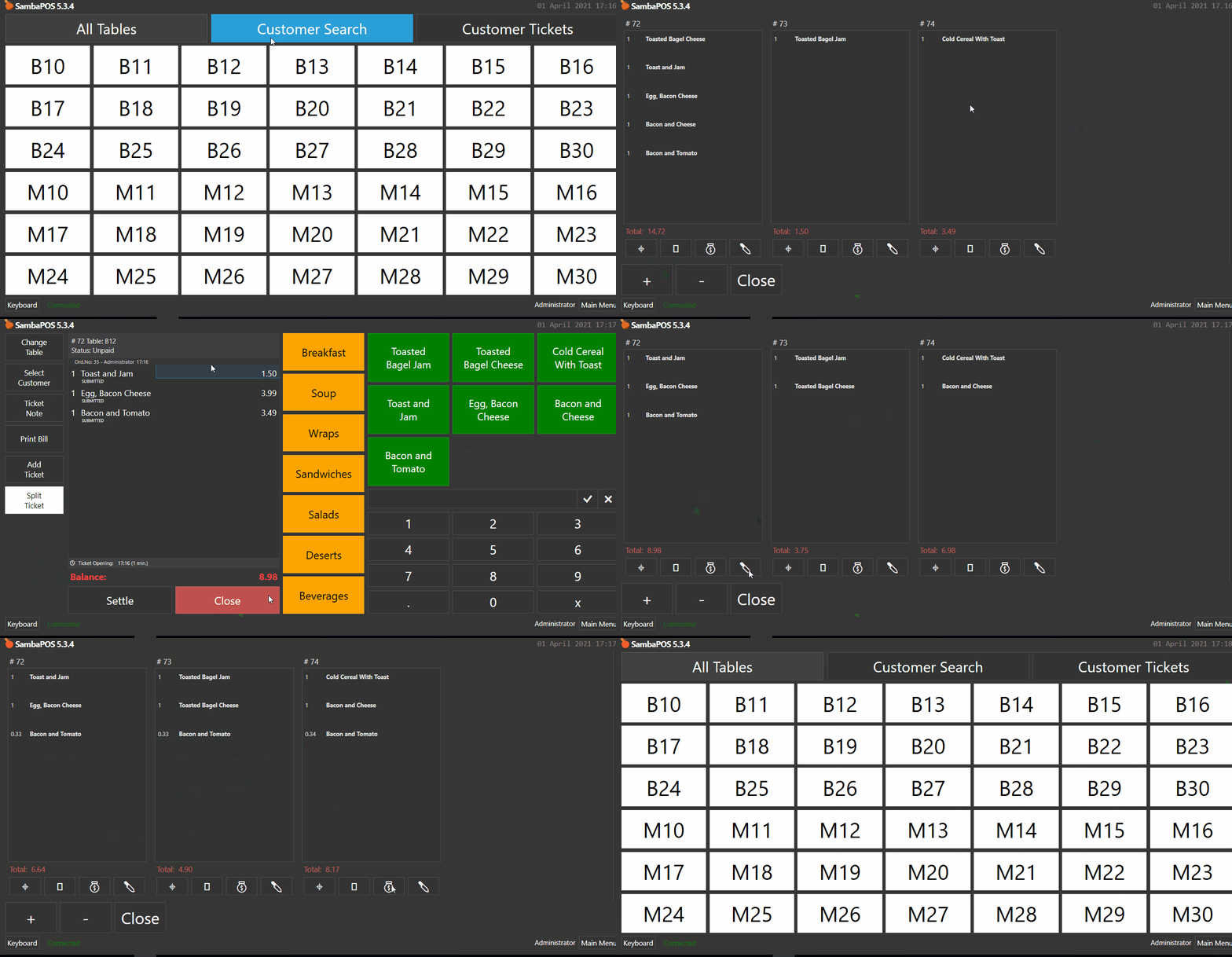
In this document it will be explained how to use Split Ticket Feature.
Important Notes:
In order to use this feature, you need to have minimum SambaPOS V5 5.3.4 version installed on your computer.
This feature requires Tables to work properly (Or an Entity).
You must submit or use Save Ticket action to split a ticket since it will not split an unsubmitted ticket.
How It Works;
1. Adding Split Ticket Automation Command
Main Menu > Manage > Automations > Automation Commands > Here, click on Add Automation Command.
General Settings Section;
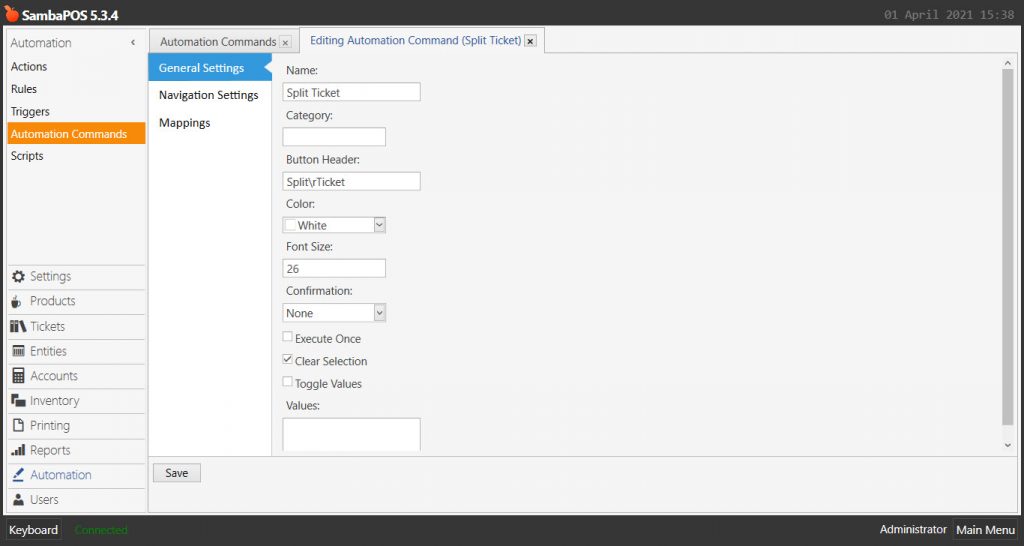
Name: Split Ticket
Button Header: Split\rTicket
Clear Selection: Must be selected
Mappings Section;
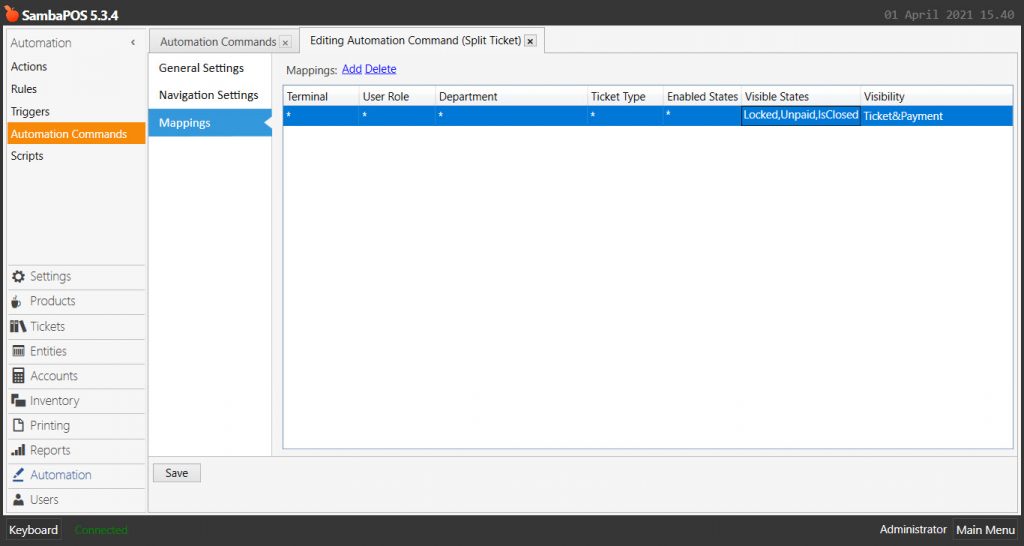
In here, add a row by clicking on Add button and configure it as shown in the above image.
Visible States: Locked,Unpaid,IsClosed
After completing necessary editings, click on Save button.
2. Adding Split Ticket Action
Main Menu > Manage > Automations > Actions > Here, click on Add Action.
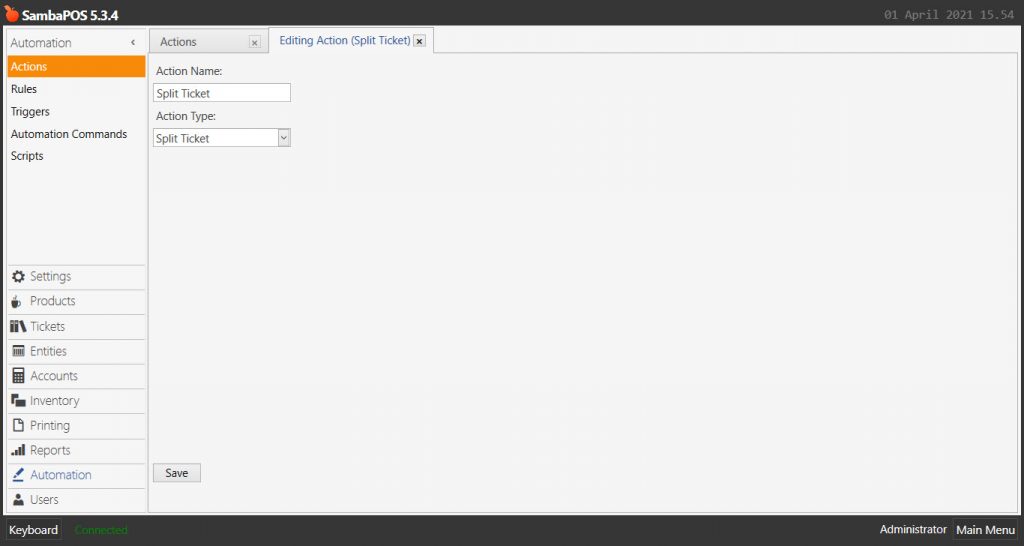
Action Name: Split Ticket
Action Type: Split Ticket
After completing necessary editings, click on Save button.
3. Adding Split Ticket Rule
Main Menu > Manage > Automations > Rules > Here, click on Add Rule.
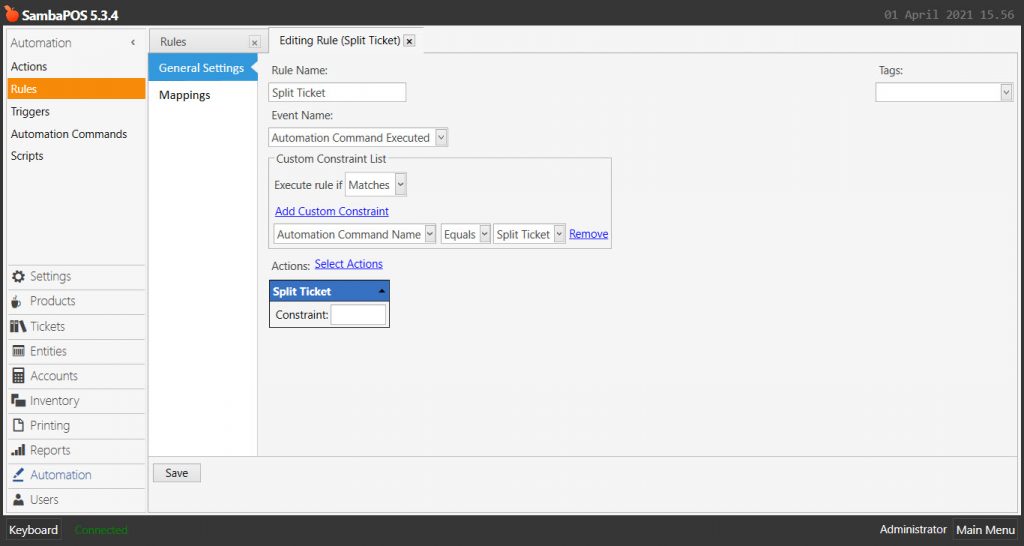
Rule Name: Split Ticket
Event Name: Automation Command Executed
Execute Rule if: Matches
Add Custom Constraint:
Automation Command Name|Equals|Split Ticket
Select Actions;
Action Name: Split Ticket
After completing necessary editings, click on Save button.