

4.100 How to Add New Product By Scanning Unknown Barcode
In this document it will be explained how to add new product by scanning an unknown barcode.
1. Adding Script
Main Menu > Manage > Automation > Scripts > Here, click on Add Script.
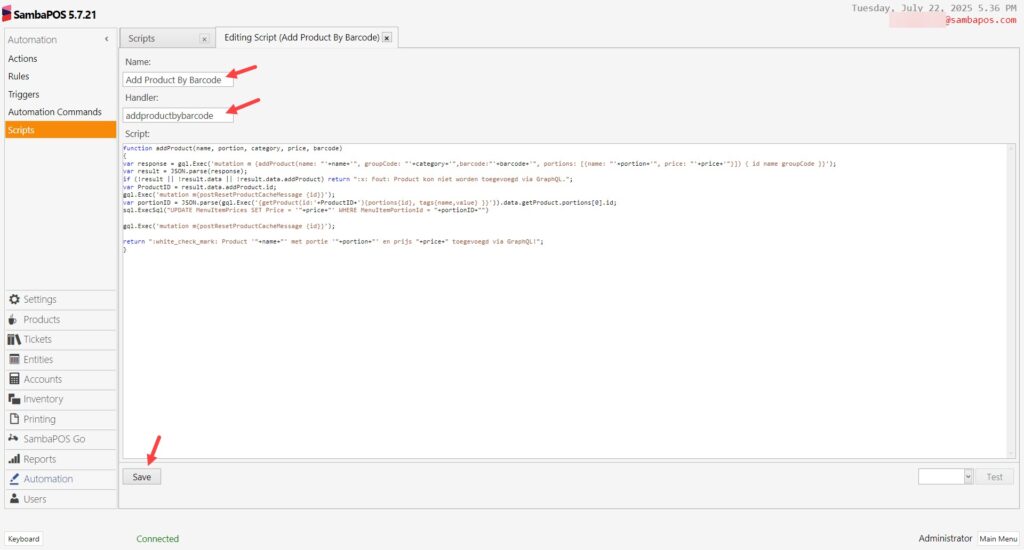
Name: Add Product By Barcode
Handler: addproductbybarcode
In here copy/paste the below script into the Script field;
function addProduct(name, portion, category, price, barcode)
{
var response = gql.Exec('mutation m {addProduct(name: "'+name+'", groupCode: "'+category+'",barcode:"'+barcode+'", portions: [{name: "'+portion+'", price: "'+price+'"}]) { id name groupCode }}');
var result = JSON.parse(response);
if (!result || !result.data || !result.data.addProduct) return ":x: Fout: Product kon niet worden toegevoegd via GraphQL.";
var ProductID = result.data.addProduct.id;
gql.Exec('mutation m{postResetProductCacheMessage {id}}');
var portionID = JSON.parse(gql.Exec('{getProduct(id:'+ProductID+'){portions{id}, tags{name,value} }}')).data.getProduct.portions[0].id;
sql.ExecSql("UPDATE MenuItemPrices SET Price = '"+price+"' WHERE MenuItemPortionId = "+portionID+"")
gql.Exec('mutation m{postResetProductCacheMessage {id}}');
return ":white_check_mark: Product '"+name+"' met portie '"+portion+"' en prijs "+price+" toegevoegd via GraphQL!";
}
After completing necessary editings, click on Save button.
2. Adding Actions
2.1. Adding APB-Add Order Action
Main Menu > Manage > Automation > Actions > Here, click on Add Action.
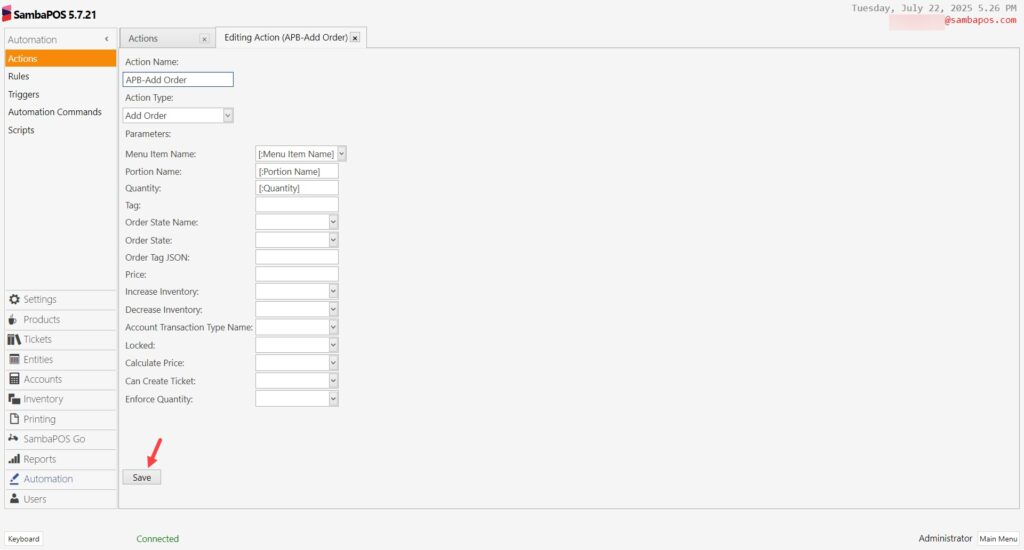
Action Name: APB-Add Order
Action Type: Add Order
Parameters:
Menu Item Name: [:Menu Item Name]
Portion Name: [:Portion Name]
Quantity: [:Quantity]
After completing necessary editings, click on Save button.
2.2. Adding APB-Add Product Execute Script Action
Main Menu > Manage > Automation > Actions > Here, click on Add Action.
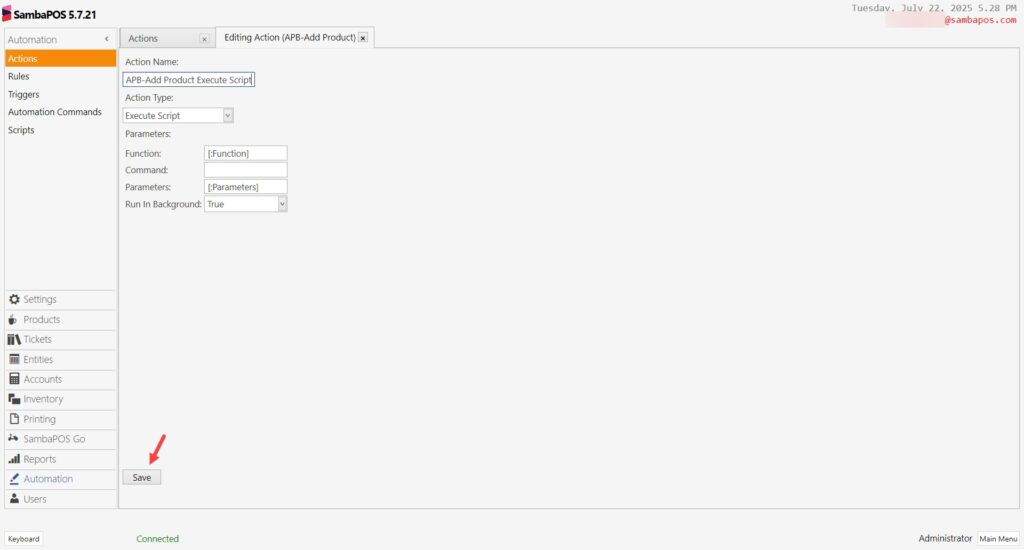
Action Name: APB-Add Product Execute Script
Action Type: Execute Script
Parameters:
Function: [:Function]
Parameters: [:Parameters]
Run In Background: True
After completing necessary editings, click on Save button.
2.3. Adding APB-Show Popup Action
Main Menu > Manage > Automation > Actions > Here, click on Add Action.
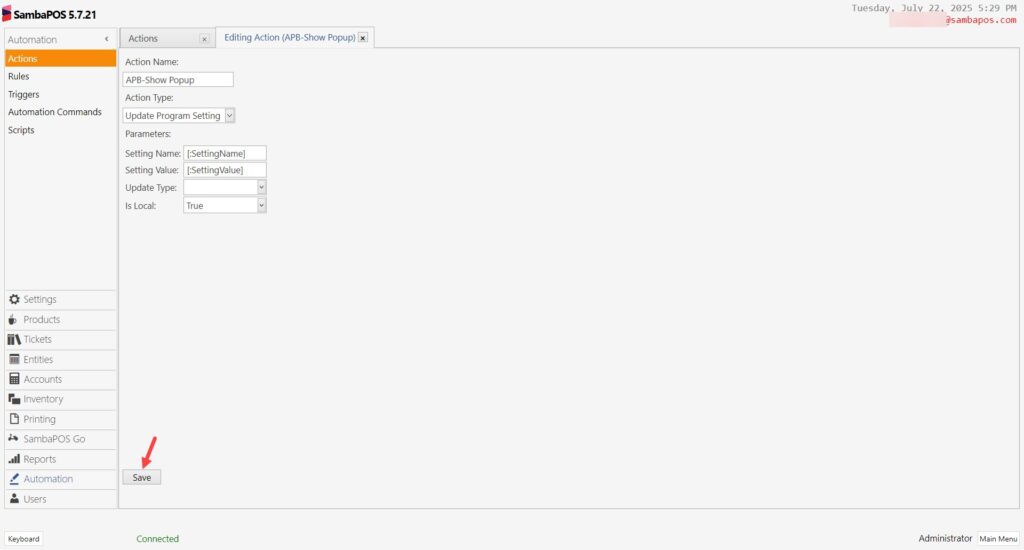
Action Name: APB-Show Popup
Action Type: Update Program Setting
Parameters:
Setting Name: [:SettingName]
Setting Value: [:SettingValue]
Is Local: True
After completing necessary editings, click on Save button.
3. Adding Rule
Main Menu > Manage > Automation > Rules > Here, click on Add Rule.
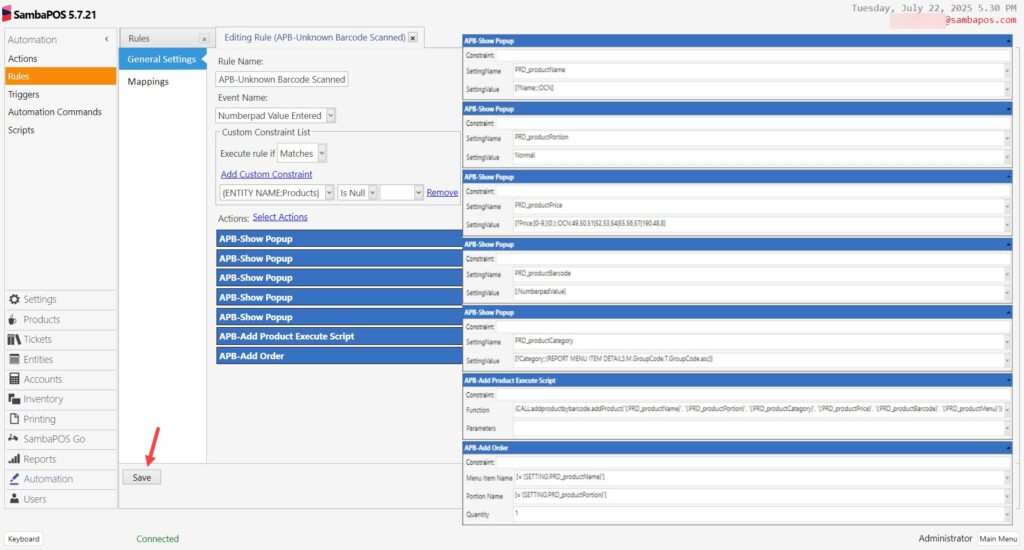
Rule Name: APB-Unknown Barcode Scanned
Event Name: Numberpad Value Entered
Execute Rule If: Matches
Add Custom Constraint:
{ENTITY NAME:Products}|Is Null|
Select Actions:
Action-1: APB-Show Popup
SettingName: PRD_productName
SettingValue: [?Name;;;OCN]
In here click on Select Actions button and move APB-Show Popup to the right side.
Add the same action 4 more times on the Action Adding Screen by right clicking on mouse and select Display All Values.
Action-2: APB-Show Popup
SettingName: PRD_productPortion
SettingValue: Normal
Action-3: APB-Show Popup
SettingName: PRD_productPrice
SettingValue: [?Price;[0-9.]{0,};;OCN;49,50,51|52,53,54|55,56,57|190,48,8]
Action-4: APB-Show Popup
SettingName: PRD_productBarcode
SettingValue: [:NumberpadValue]
Action-5: APB-Show Popup
SettingName: PRD_productCategory
SettingValue: [?Category;;{REPORT MENU ITEM DETAILS:M.GroupCode,T.GroupCode.asc}]
Action-6: APB-Add Product Execute Script
Function: {CALL:addproductbybarcode.addProduct('{:PRD_productName}', '{:PRD_productPortion}', '{:PRD_productCategory}', '{:PRD_productPrice}', '{:PRD_productBarcode}', '{:PRD_productMenu}')}
Action-7: APB-Add Order
Menu Item Name:[='{SETTING:PRD_productName}']
Portion Name: [='{SETTING:PRD_productPortion}']
Quantity: 1
After completing necessary editings, click on Save button.