
2.3.8.c How to Create Lost Automation Command?
Lost is used for products which will not be returned back to the warehouses.
Lost products can be classified by using “Lost Reasons”. It is possible to add specific reasons from automation commands for each restaurant’s requirements.
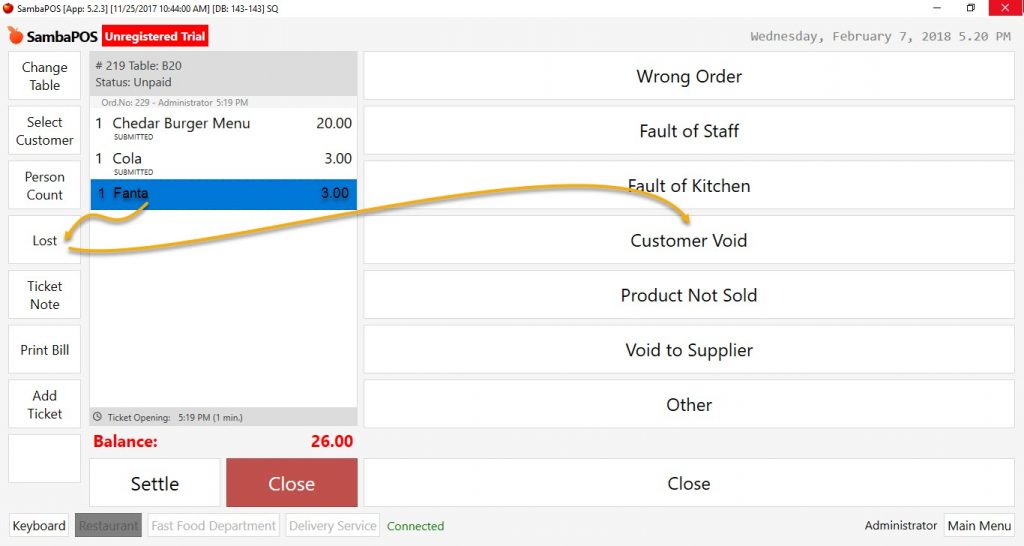
Wrong Order: Wrong product service situation.
Fault of Staff: Cases that might happen at production and service processes, such as breaking, pouring, service issues etc.
Fault of Kitchen: Cases that might happen at production and preparation processes, such as burning, dropping on the floor, Wrong production etc.
Customer Void: Cases that caused by customers.
Product Not Sold: Cases of unsold products during the day.
Void to Supplier: Cases of giving back the products to supplier.
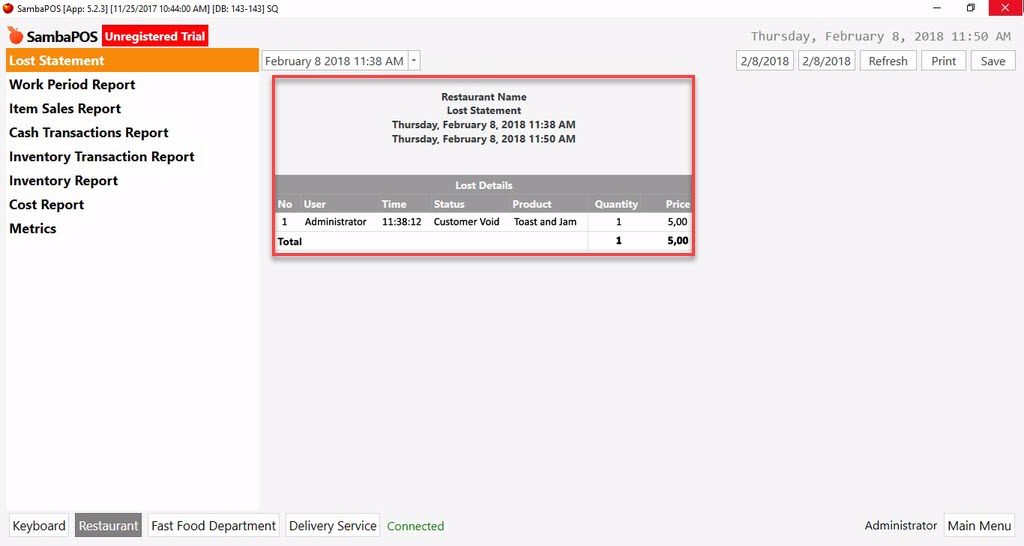
Status of lost products can be viewed among void and gift reports on the end of day reports. It is also possible to prepare it as a statement or a report.
Basic Codes That Can Be Used For Lost Statement
[Lost Details:1,3,2,3,3, 2, 2]
>No|User|Time|Status|Product|Quantity|Price
{REPORT ORDER DETAILS:T.TicketNumber,OSU.GStatus,O.Time,OSV.GStatus,O.MenuItemName,O.Quantity,O.TotalPrice:(OS.GStatus=Lost)}
>Total|||||{REPORT ORDER DETAILS:O.Quantity.sum,O.TotalPrice.Sum:(OS.GStatus=Lost)}
Lost Statement View
To use Lost feature create those Automation Commands, Actions and Rules.
Creating Automation Command
Creating Action
Creating Rule
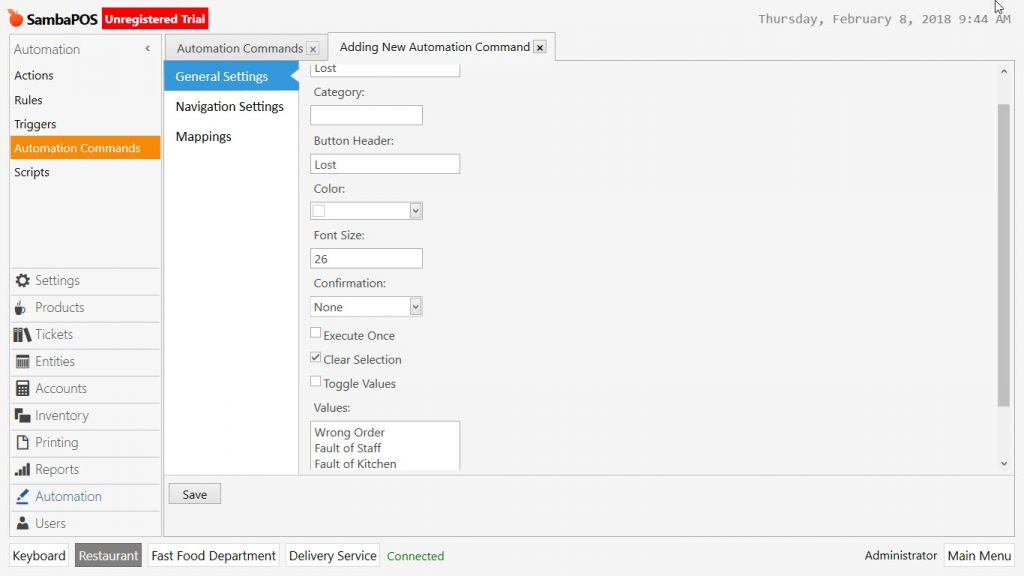
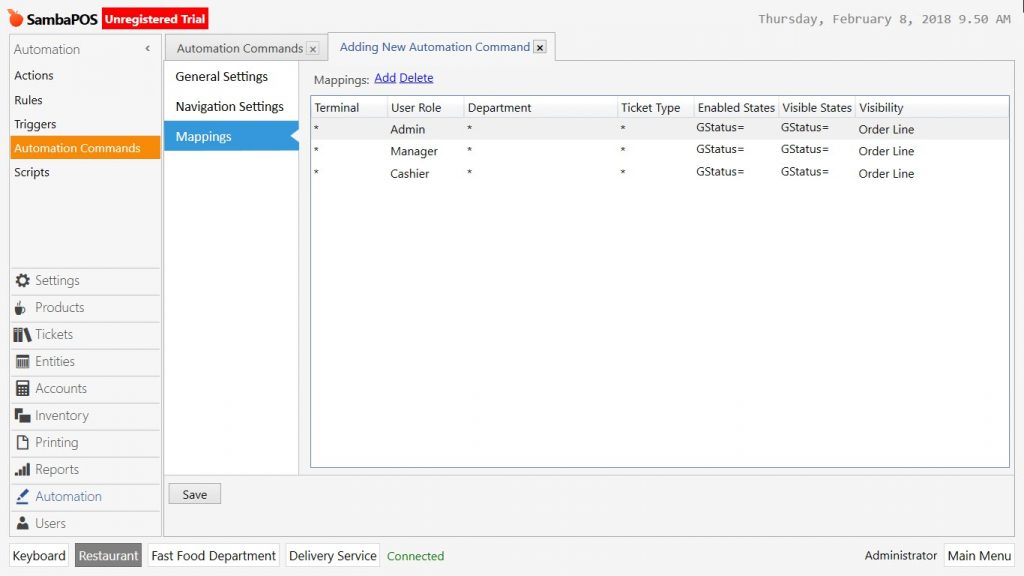
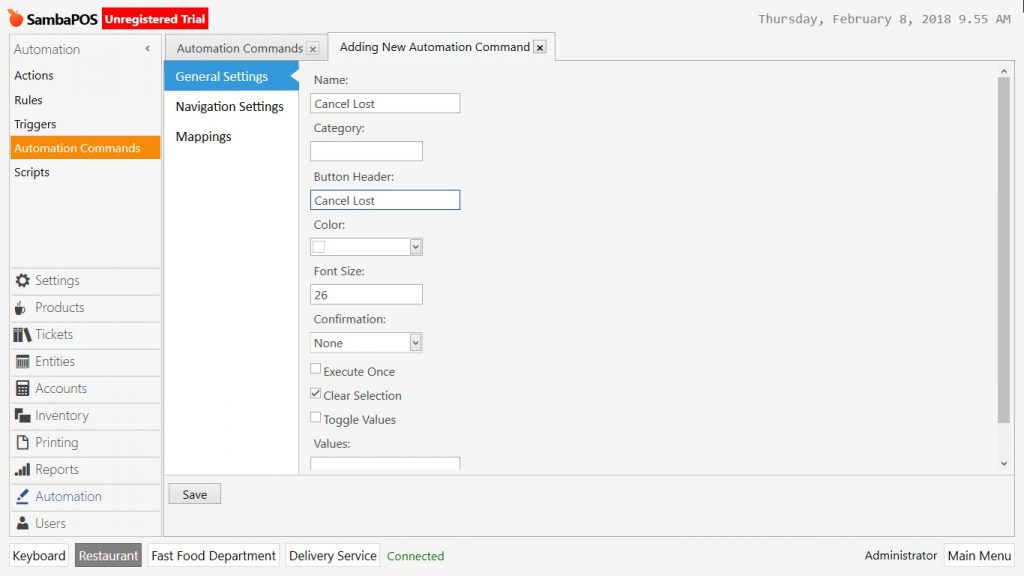
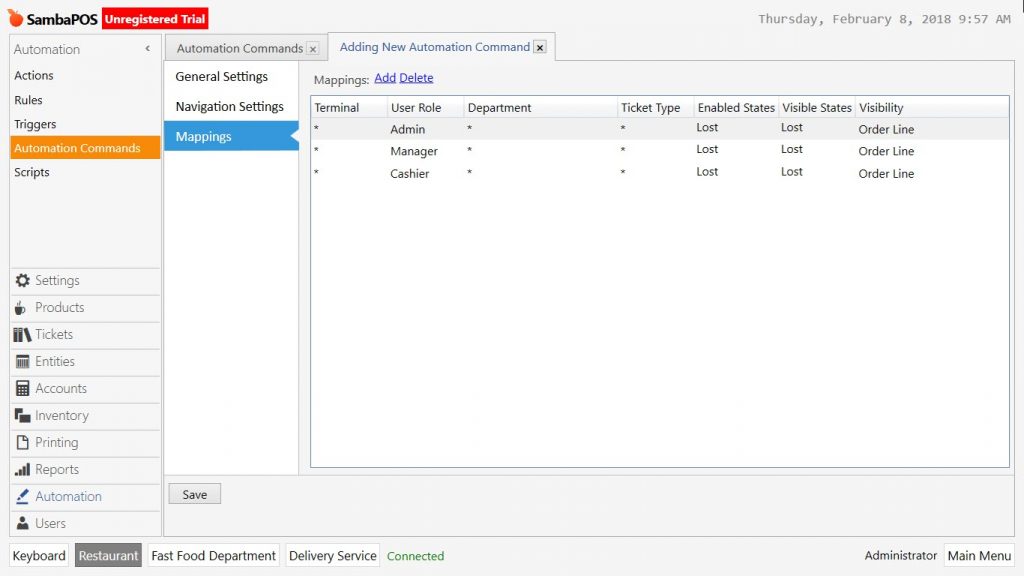
1. Automation Commands
1.1. Lost Automation Command
1.2. Cancel Lost Automation Command
2. Creating Action
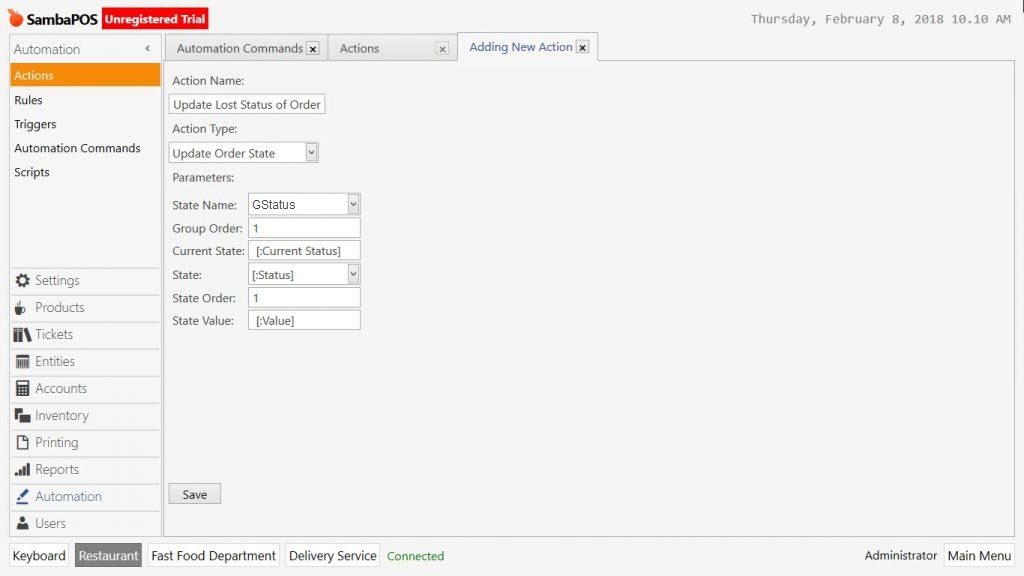
2.1. Action Name: Update Lost Status of Order
Action Type: Update Order State
ParametersState Name: GStatus
Group Order: 1
Current State: [:Current Status]
State: [:Status]
State Order: 1
State Value: [:Value]
3. Creating Rule
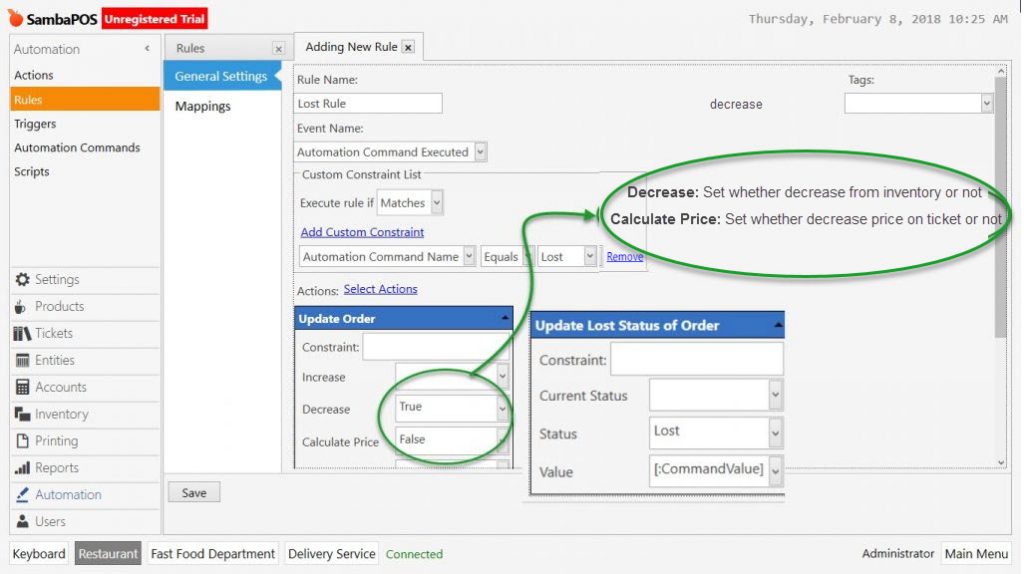
3.1. Lost Rule
Event Name: Automation Command Executed
Add Custom Constraint: Automation Command Name | Equals | Lost
Actions > Select Actions
Update Order
Decrease: True
Calculate Price: False
Update Lost Status of Order
Status: Lost
Value: [:CommandValue]
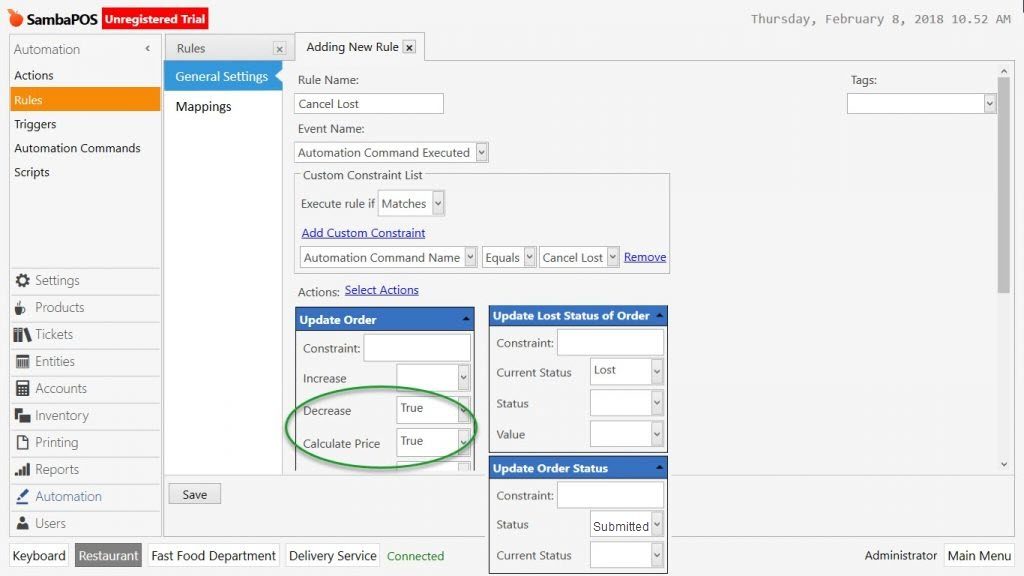
3.2. Cancel Lost Rule
Action Name: Automation Command Executed
Add Custom Constraint: Automation Command Name | Equals | Cancel Lost
Actions > Select Actions
Update Order
Decrase True
Calculate Price: True
Update Lost Status of Order
Current Status: Lost
Update Order Status
Status: Submitted