
2.4.5 How to Sell with Different Prices to Different Customer Types?
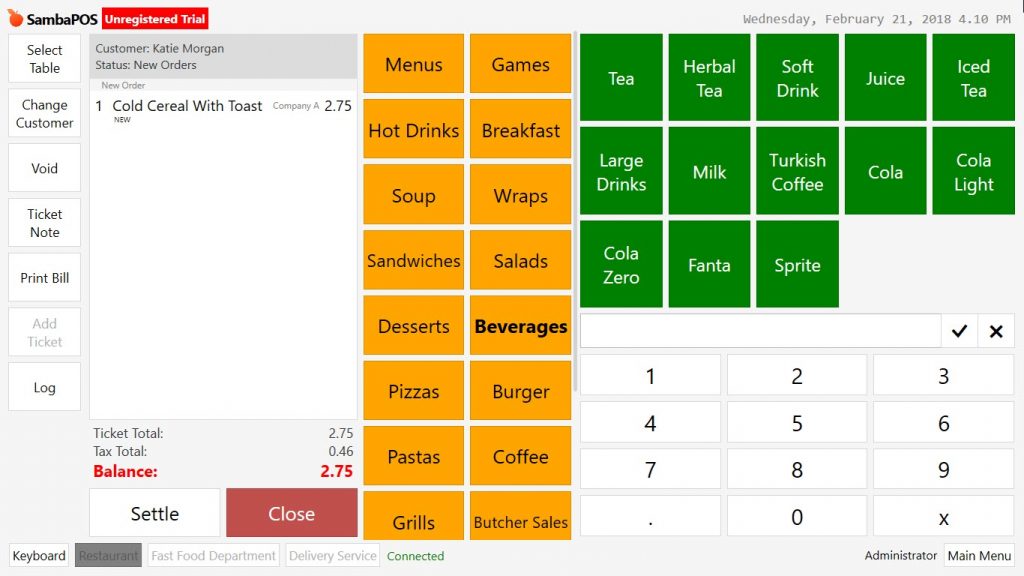
It is possible to sell same product with different prices to different customer groups. For example while price of a menu is 10 for employees of company A, it could be 12 for employees of company B.
Updating Customer Entity Type
Add a custom field for existing customer entity type in order to differentiate employess of companies. Go to Manage > Entities > Entity Types from here click on Customers.
Custom Fields Section;
To add a new custom field click on Add Custom Field link.
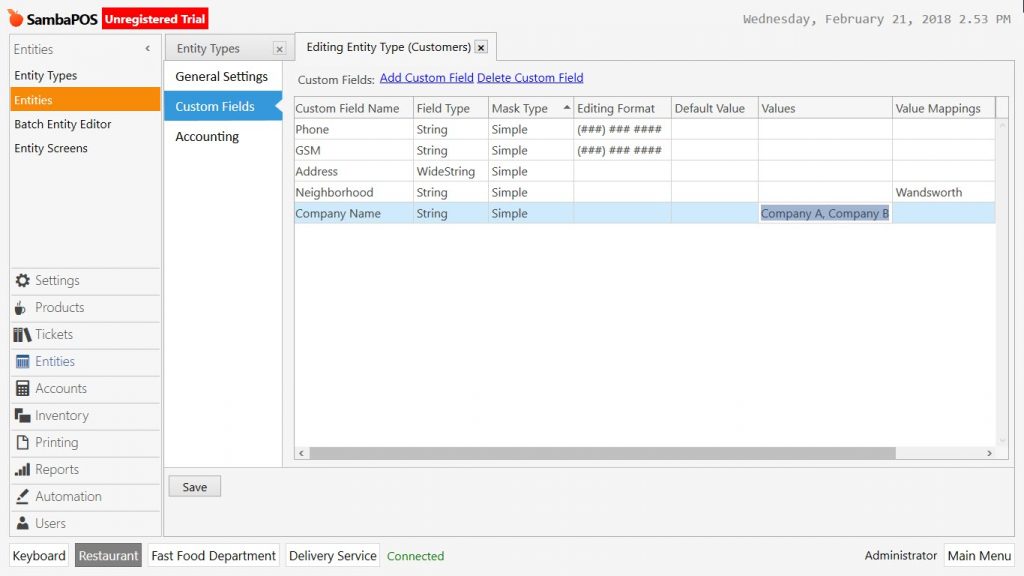
Write the names of companies into values field by separating them with , (comma)
After completing necessary fields, click on Save button.
Adding Price Definitions
Go to Manage > Products > Price Definitions from here click on Add Price Definition link.
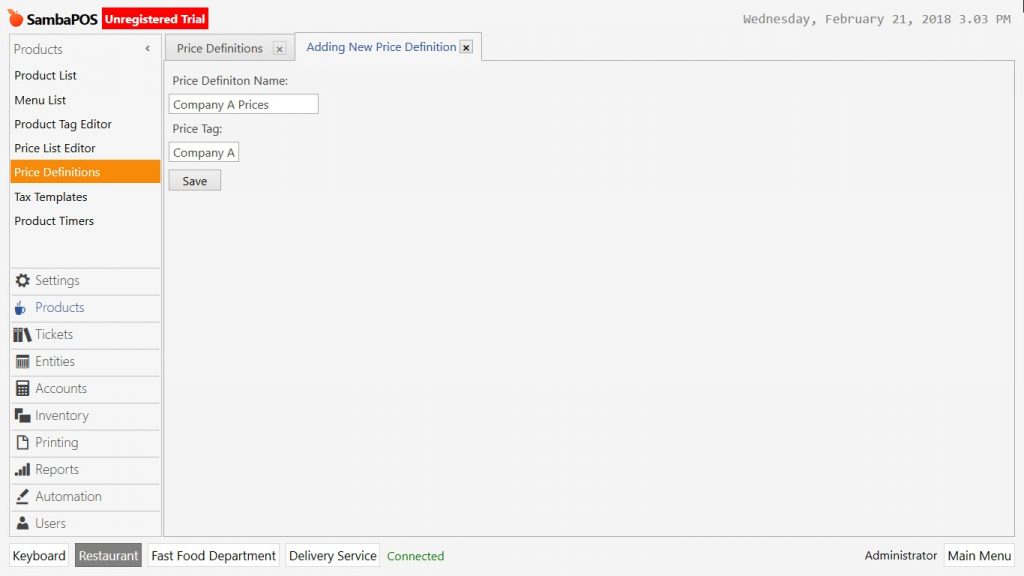
Price Definition Name: Write here name of the company.
Price Tag: Write the price tag here.
After completing necessary fields, click on Save button. Repeat the same process for other companies too.
Updating Prices
Go to Manage > Products > Price List Editor from here determine the both normal and customized prices.
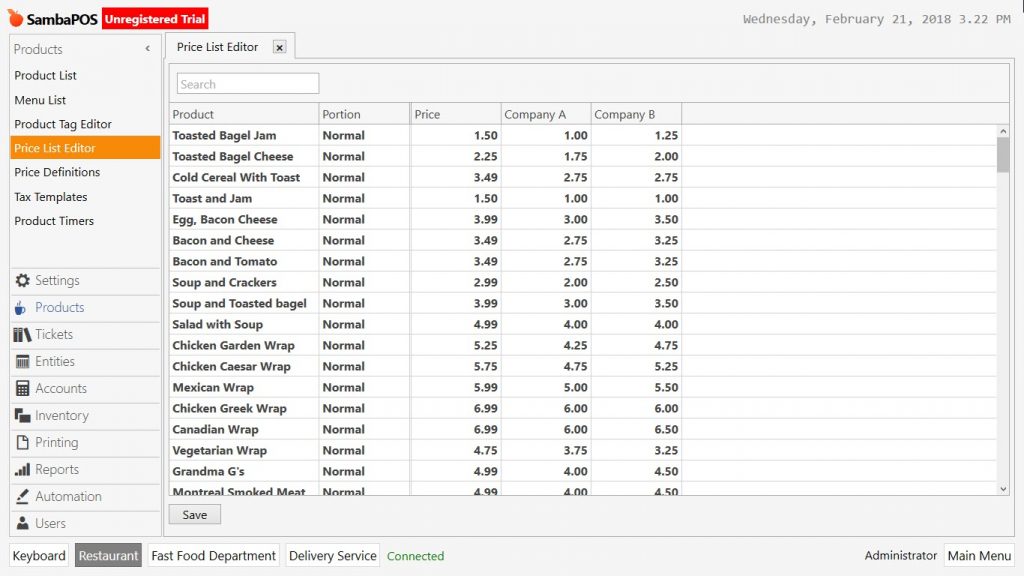
After completing necessary fields, click on Save button.
Adding Update Order Action
Go to Manage > Automation > Actions from here click on Add Action link.
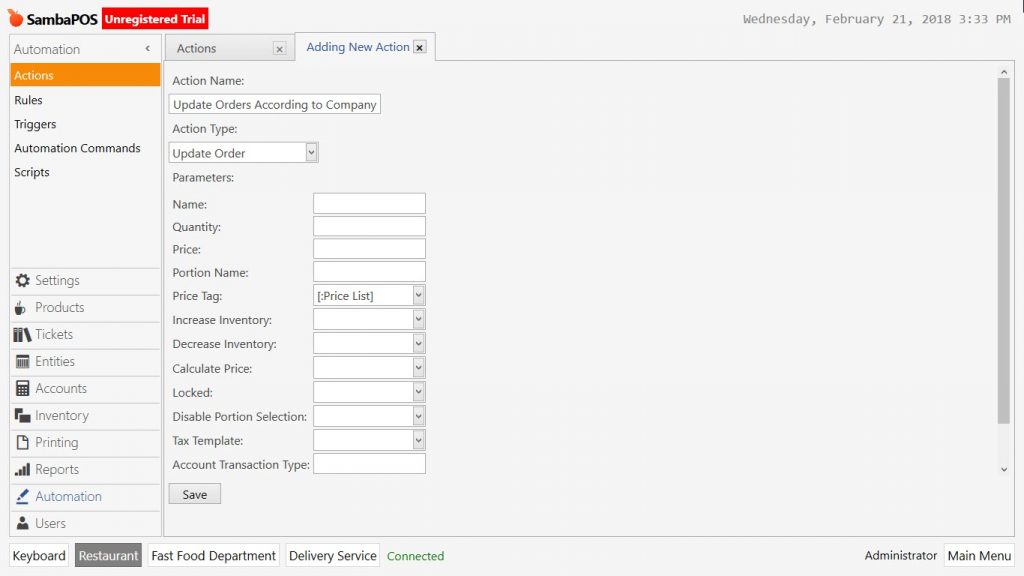
Action Name: Write a proper name for action. (For example; Update Orders According to Company)
Action Type: Select Update Order template.
Price Tags: In this field write [:Price List] formula.
After completing necessary fields, click on Save button.
Adding Rule to Configure the Prices
Go to Manage > Automation > Rules from here click on Add Rule link.
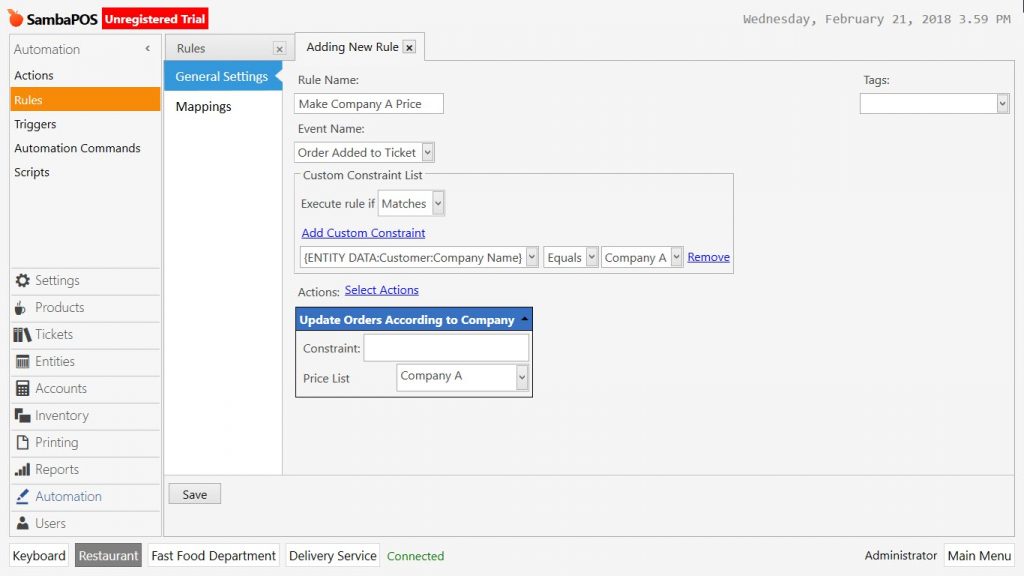
Rule Name: Give a proper name for the rule. (For example; Make Company A Price)
Event Name: Select Order Added to Ticket template.
Add Custom Constraint: Add a line in this field.
{ENTITY DATA:Customer:Company A} | Equals | Company A
Actions > Select Action: Select the action which created on previous step (Update Orders According to Company) Write Company A into Price List field.
After completing necessary fields, click on Save button. Same rule has to be created for other companies too.
When selected a customer that company information already added, sale will be through the custom price of this company.